


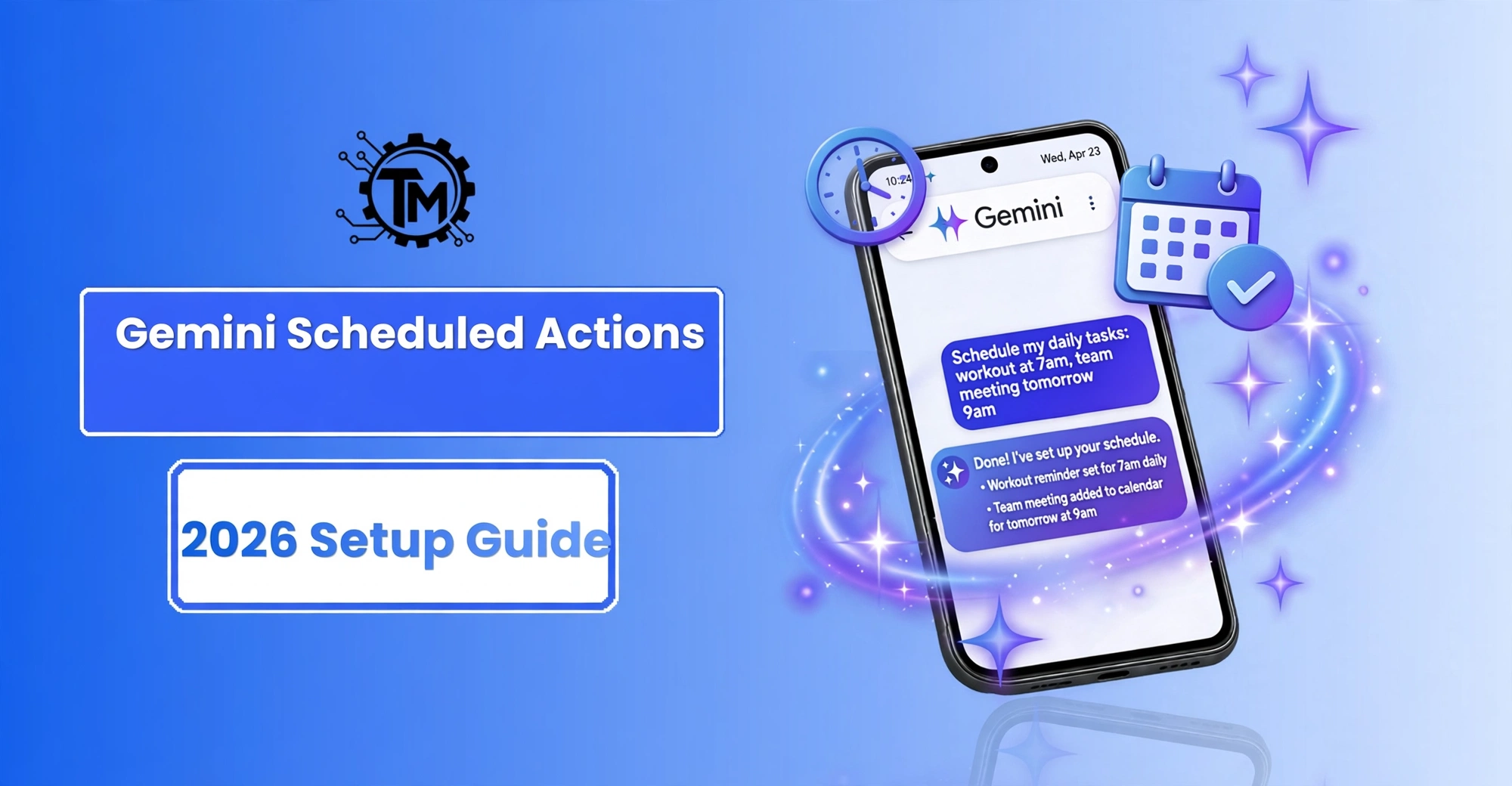
Google’s Gemini app quietly gained one of its most useful features: Scheduled Actions. Instead of asking Gemini the same question every morning, you can now set a prompt once and have Gemini run it automatically — a daily news briefing at 7 AM, a reminder to drink water every afternoon, a weekly summary of your unread emails, or a bedtime recap of tomorrow’s calendar. The feature rolled out broadly in October 2026, and it works on both Android and iOS through the Gemini app.
In this guide, I’ll show you exactly how to set up Gemini Scheduled Actions, share 15 ready-to-use prompt ideas you can copy and paste, and walk you through the fixes for the most common problems — including why the option sometimes doesn’t show up at all.
What Are Gemini Scheduled Actions?
Scheduled Actions let you turn any Gemini prompt into a recurring automation. You write the instruction once, pick a schedule (daily, weekly, or a custom time), and Gemini executes it for you in the background. When the action runs, you get a notification with Gemini’s answer — you don’t even need to open the app.
Think of it as a smarter version of a phone alarm combined with an AI assistant. An alarm can only ring; a scheduled action can read your calendar, check the weather, summarize your emails, and hand you a finished result. It is Google’s answer to ChatGPT’s Scheduled Tasks feature, which became available on the free plan in August 2026, and it integrates deeply with Gmail, Google Calendar, and other Google services.
Requirements: Who Can Use Scheduled Actions
Before you start tapping through settings, make sure you qualify. Not every account sees the feature yet.
Account and app requirements
You need the latest version of the Gemini app on Android or iOS, and you must be signed in with a personal Google account. As of October 2026, Scheduled Actions are rolling out to most regions, but Google Workspace and education accounts may have it disabled by their administrator. If you are on a work or school account and don’t see the option, that is likely why.
Supported devices
The feature lives inside the Gemini mobile app, so it works on Android phones and tablets as well as iPhones and iPads with the Gemini app installed. On Android, it works best when Gemini is set as your default assistant, though that is not strictly required for scheduled actions to run.
How to Set Up Your First Scheduled Action
Setting up your first action takes less than two minutes. Here’s the exact process:
Step 1: Open the Gemini app and find Scheduled Actions
Open the Gemini app on your phone. Tap your profile picture in the top corner, then look for Scheduled actions (on some versions it appears under Settings). If you don’t see it, update the app from the Play Store or App Store first — the rollout completed broadly in October 2026, so an outdated app is the most common reason it’s missing.
Step 2: Create a new action
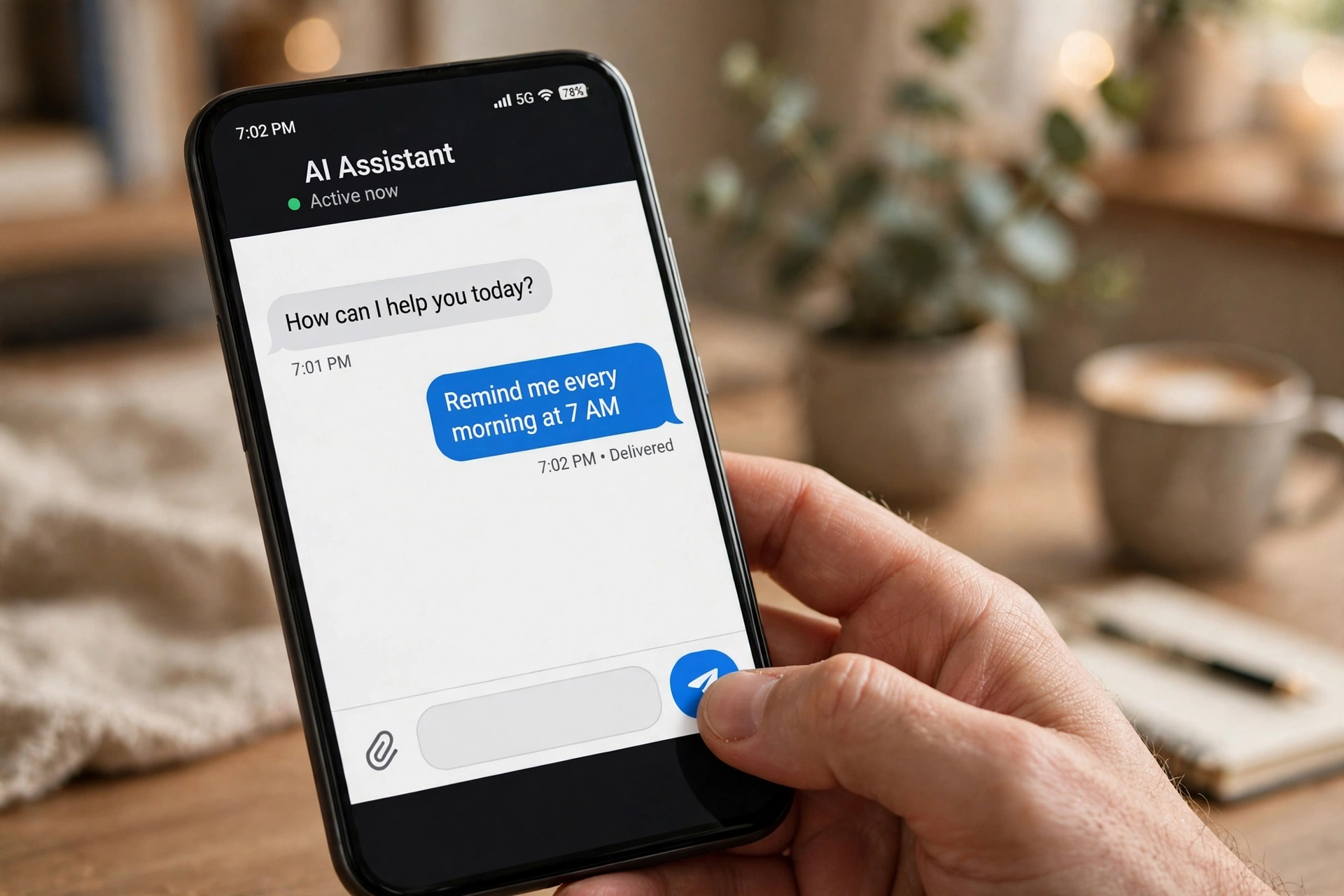
Tap Create or the plus (+) button. You’ll see a text field where you type the instruction — this is the prompt Gemini will run on your schedule. Be specific: instead of “news,” write “Give me a 5-bullet briefing of the top tech news from the last 24 hours, each bullet under 20 words.”
Step 3: Choose the schedule
Pick how often the action runs: once, daily, or weekly — then set the time. Daily actions are the most popular: a morning briefing at 7:00 AM, an evening to-do review at 9:00 PM. You can also set a start date if you want the action to begin later.
Step 4: Connect the services it needs
If your prompt touches Gmail, Calendar, or other apps, Gemini will ask for permission the first time. Grant only what the task needs — a morning briefing that reads your calendar needs Calendar access, but a news summary doesn’t need anything.
Step 5: Save and test
Save the action and let it run once. Check the notification when it fires: is the result what you expected? If the briefing is too long or misses the point, edit the prompt and be more specific. Small wording tweaks make a big difference.
15 Ready-to-Use Prompt Ideas
Staring at a blank prompt box is the hardest part. Copy any of these and adjust the details to fit your life.
Morning briefings
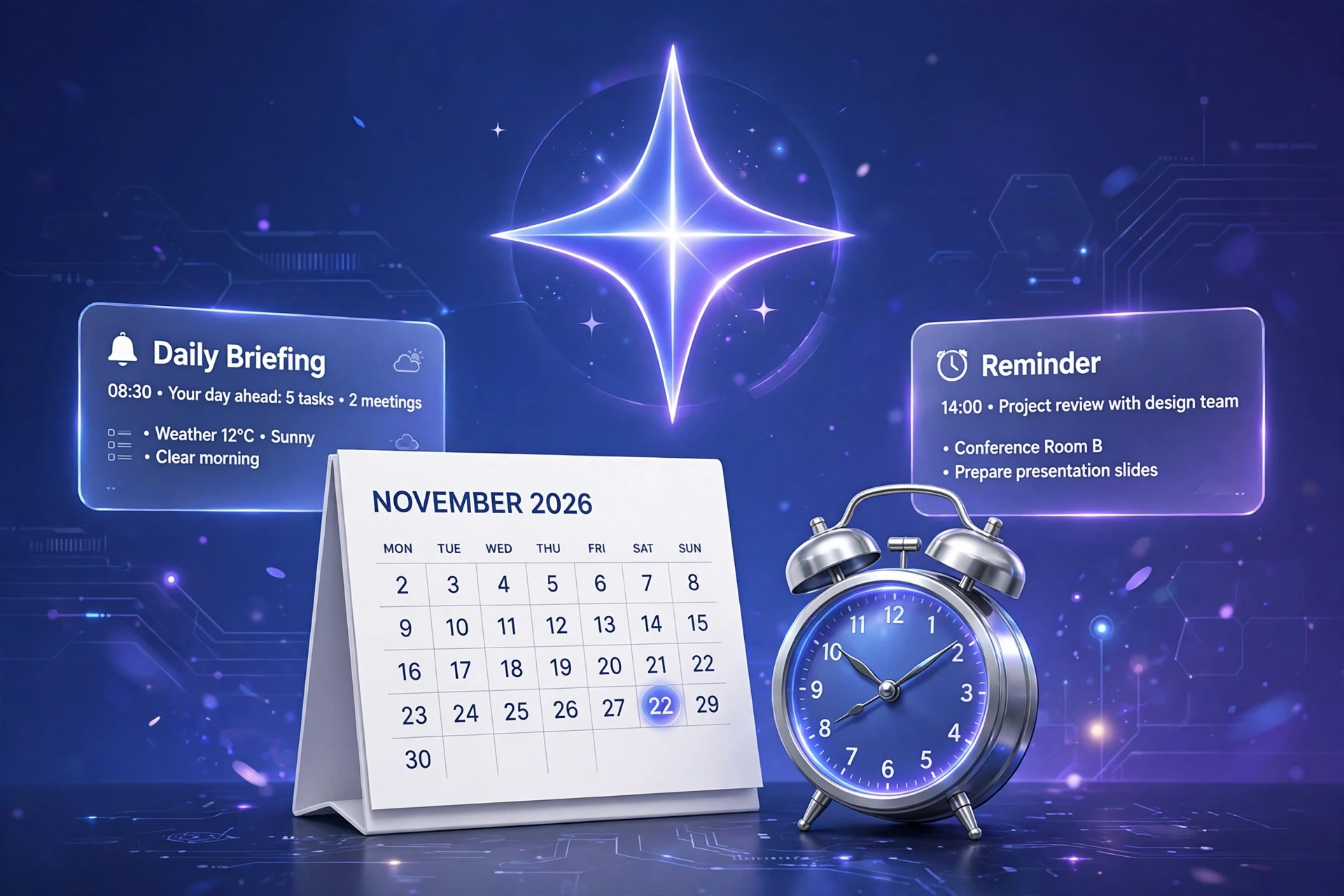
1. “Every weekday at 7:00 AM, give me a 5-bullet briefing: today’s weather in my city, my first 3 calendar events, and the top 3 tech headlines from the last 24 hours.”
2. “Every morning at 6:30 AM, summarize any emails I received overnight that look urgent or need a reply, with the sender’s name and a one-line summary each.”
3. “Daily at 8:00 AM, give me one productivity tip related to my calendar — for example, if I have back-to-back meetings, suggest when to take a break.”
Work and study
4. “Every weekday at 5:30 PM, create a short end-of-day recap: list my completed calendar events and draft tomorrow’s top 3 priorities based on my schedule.”
5. “Every Monday at 9:00 AM, summarize the key tech and AI news from the weekend in under 200 words.”
6. “Daily at 10:00 PM, quiz me with 5 questions on the Spanish vocabulary I’ve been learning this week, then correct my answers.”
Health and lifestyle
7. “Every day at 12:30 PM, remind me to drink water and stretch, with a different 2-minute stretch routine each day.”
8. “Every evening at 8:00 PM, suggest a 30-minute home workout based on the equipment I have: dumbbells and a yoga mat.”
9. “Every Sunday at 6:00 PM, plan 5 healthy dinners for the week under 30 minutes each, with a combined grocery list.”
Money and errands
10. “On the 1st of every month, remind me to review my subscriptions and list common ones people forget to cancel.”
11. “Every Friday at 4:00 PM, check my calendar for next week and warn me about any scheduling conflicts.”
12. “Daily at 7:30 AM, tell me the current price of Bitcoin and Ethereum and whether either moved more than 5% in 24 hours.”
How to Edit, Pause, or Delete a Scheduled Action
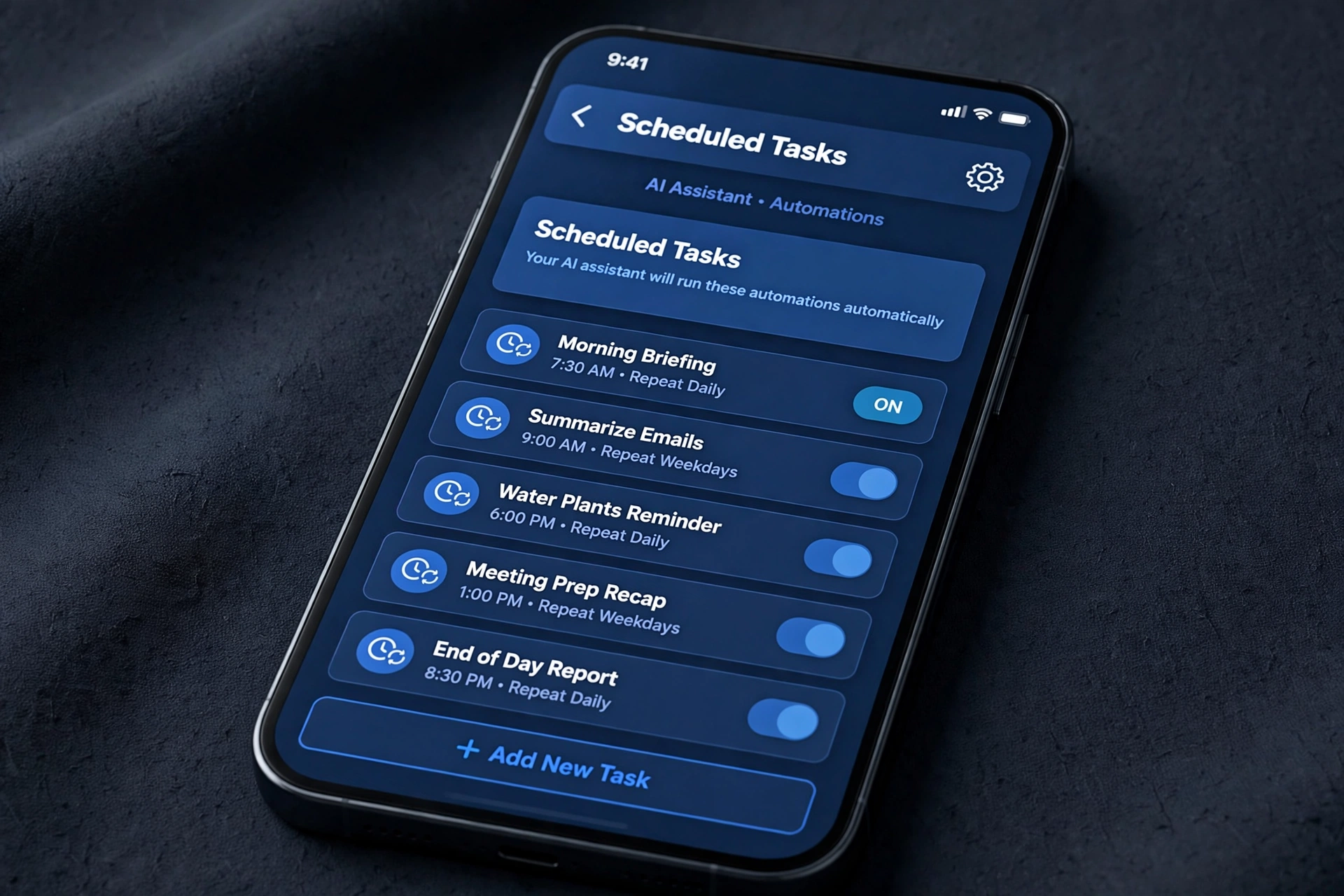
Life changes, and your automations should change with it. Go back to Scheduled actions in the Gemini app to see all your actions in one list. Tap any action to edit its prompt or schedule. Use the toggle next to an action to pause it temporarily — handy for pausing a work briefing during vacation — without deleting it. To remove one permanently, open it and tap Delete.
A good habit: review your scheduled actions once a month. Prompts that made sense in October may be irrelevant by December, and stale automations just create notification noise.
Gemini Scheduled Actions Not Working? 6 Fixes
If your actions aren’t running, or the option doesn’t appear at all, work through these fixes in order.
Fix 1: Update the Gemini app
An outdated app is the number one cause. Open the Play Store or App Store, search for Gemini, and install any available update. The broad rollout finished in October 2026, so anything older may simply lack the feature.
Fix 2: Check your account type
Scheduled Actions require a personal Google account. Google Workspace, education, and child accounts may not have access, or an administrator may have disabled it. Try signing in with a personal Gmail account to confirm.
Fix 3: Turn on notifications for Gemini
A scheduled action can run perfectly and still seem broken if its notification never reaches you. Go to your phone’s Settings, find the Gemini app, and make sure notifications are allowed — including lock-screen and banner styles.
Fix 4: Disable battery optimization for Gemini
On Android, aggressive battery savers can kill background tasks. Go to Settings > Apps > Gemini > Battery and set it to Unrestricted. This is the same setting that fixes many background-app issues on Android 16.
Fix 5: Re-grant connected app permissions
If an action that reads your calendar or Gmail suddenly stops working, its permission may have expired. Open the action, remove the connected service, and add it again. Google periodically revokes stale permissions for security.
Fix 6: Simplify the prompt
Overly complex prompts with five different data sources fail more often. Split one giant action into two or three smaller ones — a separate calendar check and a separate news briefing are each more reliable than one prompt trying to do everything.
ChatGPT Scheduled Tasks vs Gemini Scheduled Actions
The obvious comparison is with ChatGPT’s Scheduled Tasks, which opened up to free-plan users in August 2026. Both do the same basic job — run a prompt on a schedule and notify you — but they differ in ecosystem. Gemini’s edge is native access to Gmail, Calendar, and Google’s other services without third-party connectors. ChatGPT’s edge is a larger library of community-shared task templates and slightly more flexible scheduling options. If your life runs on Google apps, Gemini is the natural pick; if you live in ChatGPT already, there’s no strong reason to switch.
If you follow AI tools closely, you may also like our hands-on look at DeepSeek’s newest model and what it can actually do:
DeepSeek V4.1 Flash 1017: What’s New and How to Use It (2026)
And if background automations seem to drain your battery faster, these Android power fixes will help:
Android 16 Battery Drain After Update Fix: 7 Proven Ways to Stop Fast Drain
Google documents the feature, including current availability and limits, on its official support page:
Google Gemini Help Center — official documentation for Gemini features
For an independent walkthrough with screenshots of the rollout, Android Police covered the launch in detail:
Android Police — Gemini Scheduled Actions coverage and setup walkthrough
Frequently Asked Questions
Are Gemini Scheduled Actions free?
Yes. As of the October 2026 rollout, Scheduled Actions are available to users of the free Gemini app. Some advanced capabilities may eventually tie into paid tiers, but basic scheduling costs nothing.
How many scheduled actions can I create?
Google hasn’t published a hard limit, but in practice the app handles dozens without trouble. Keep the list tidy anyway — more than 10 or 12 daily notifications gets noisy fast.
Do scheduled actions work when my phone is off?
No. The action runs on your device through the Gemini app, so the phone needs to be on and connected to the internet at the scheduled time. If the phone is off, that run is skipped — it won’t pile up missed runs.
Final Words
Gemini Scheduled Actions turn the AI assistant from something you open into something that works for you in the background. Start with one action — a morning briefing is the perfect first test — and add more only after the first one proves useful. Keep prompts specific, review them monthly, and don’t let notification noise undo the convenience. Set up well, this is the closest thing to a personal assistant most of us will get for free in 2026.
