


Android 16 Battery Drain After Update Fix: 7 Proven Ways to Stop Fast Drain
If you need a working android 16 battery drain after update fix, start here — not with a factory reset. Your phone was fine yesterday, you installed Android 16, and now it feels warm, loses 15–20% overnight, and barely makes it to the evening. That is common after a major update — the battery is usually not faulty.
Post-update drain usually comes from background work, an app that has not caught up, or a setting the update reset. Work through the seven fixes in order — the first three solve it for most Pixel and Samsung users.
Why Android 16 Battery Drain Happens After an Update
There are five main reasons your phone uses more power in the first days after updating.
Background Re-Indexing and ART Optimization
After a major update, Android re-indexes files, photos and app data, and re-optimizes every app for the new Android Runtime (ART). Until that finishes, the processor works harder on every launch, creating extra heat and drain. Google notes this extra drain after a software update is normal while the phone optimizes.
Adaptive Battery Has to Re-Learn Your Habits
Adaptive Battery limits apps you rarely use and lets regular apps run freely. After Android 16, that learning starts again, with a settling period of about 5 to 7 days. Resetting battery stats in this period restarts the learning and can prolong the drain.
Apps That Are Not Yet Optimized for Android 16
An app built for Android 15 can misbehave on Android 16 — it may fail to enter deep sleep, wake the phone repeatedly, or loop on a background task. Social, shopping, gaming and streaming apps are the usual offenders.
Google Play Services Sync Loops
Google Play Services handles sync, location, notifications and account services for almost everything else. If its cache corrupts during the update, it can get stuck in a sync loop and sit at the top of your battery usage list all day.
Display and Radio Settings Reset by the Update
Major updates sometimes reset brightness mode, screen refresh rate, 5G preference and scanning options to defaults. Your phone may now run at maximum refresh rate, scan constantly for nearby devices, and hold a weak 5G signal — all draining battery without you touching a setting.
Fix 1: Check Battery Usage to Find the Rogue App
Do not guess. The first step in any android 16 battery drain after update fix is to let Android 16 tell you exactly which app is responsible.
- Go to Settings > Battery > Battery usage.
- Charge to 100%, use the phone normally for a few hours, then check the list again.
- Look for an app near the top that you have barely used, or one showing very high background time compared to its screen time.
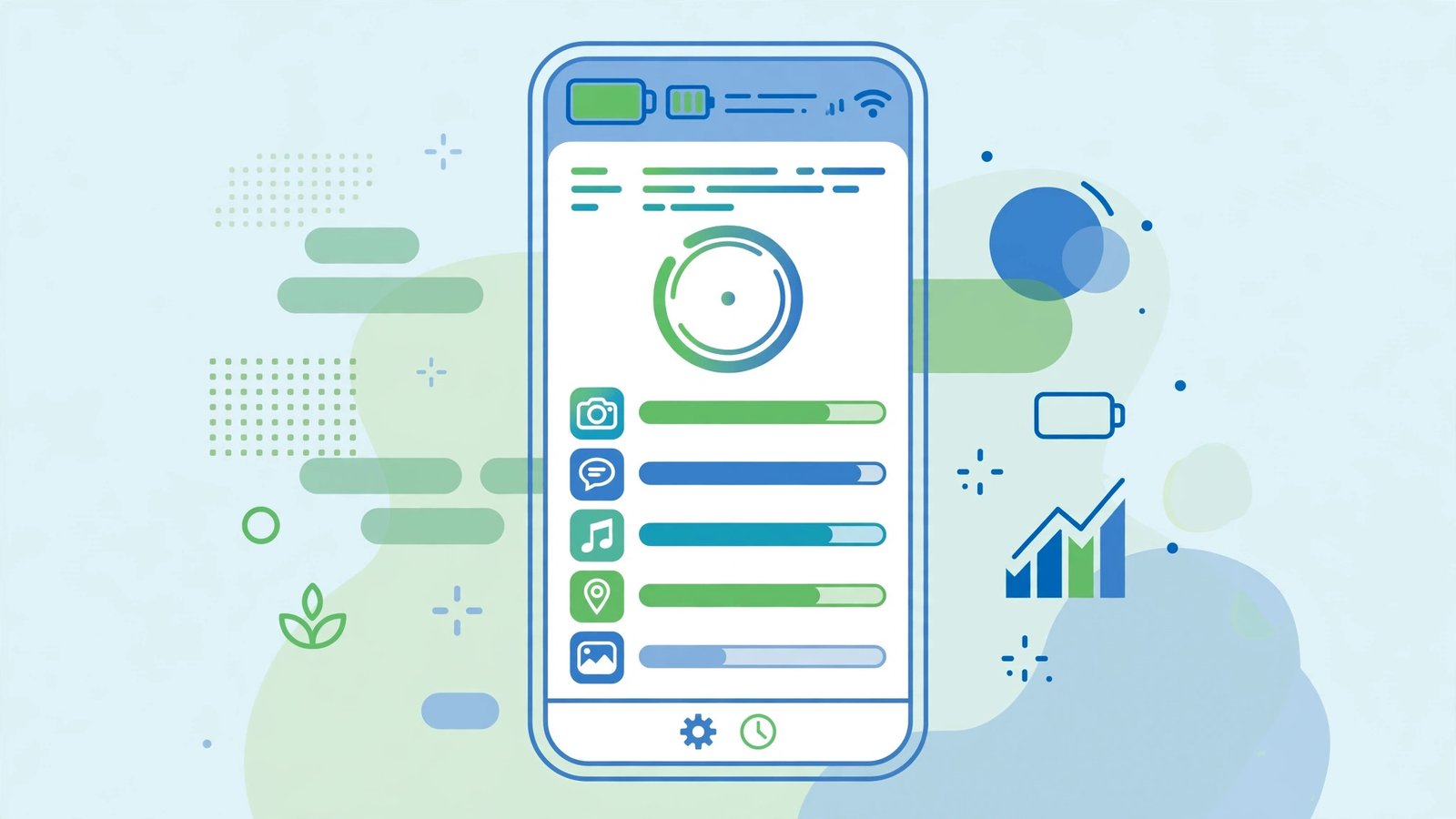
A game you opened for two minutes should not have used 18% of your battery in the background. Note that app — the next fix is applied to it directly. On Pixel 6 and later, also try Settings > Battery > Battery diagnostics > Battery draining too quickly.
Fix 2: Restrict Background Apps That Drain Battery
- Go to Settings > Apps > [app] > Battery.
- Choose Restricted for apps you do not need instant notifications from, such as games, shopping and streaming apps.
- Leave messaging, email, banking and alarm apps on Optimized, not Restricted, so their notifications and security alerts still arrive.
- Avoid Unrestricted for everything except apps that genuinely need it, like your VPN or Android Auto if you use it wirelessly.
Some pre-installed background apps are easy to overlook. If a system app keeps appearing in your usage, our guide explaining what the AR Zone app is and whether you need it helps you decide whether to restrict, disable, or leave it.
Samsung One UI Deep Sleeping Apps
On Samsung, go to Settings > Battery > Background usage limits and add misbehaving apps to Deep sleeping apps. They never run in the background and only work when opened — ideal for once-a-week apps. Also run Settings > Battery and device care > Optimise now once after the update.
The same deep sleep logic applies across Galaxy devices, which we also saw in our Samsung Galaxy Tab S9 FE review, where background limits made a clear difference to standby drain.
Fix 3: Update All Apps and Clear the Google Play Services Cache
Outdated apps are a top cause of post-update drain, so updating everything is a core android 16 battery drain after update fix.
- Open the Play Store > Profile icon > Manage apps & device and tap Update all.
- On Samsung, also open the Galaxy Store > Menu > Updates and update Samsung’s own apps, which do not update through the Play Store.
- Restart the phone once all updates finish, and leave it plugged in overnight so ART optimization can complete while it is idle and charging.
Do not skip streaming apps in this update round. Even an app you only open to watch something can run background checks, so keep apps like the one in our guide to downloading and using the TV app fully updated before judging your battery.
Clear the Google Play Services Cache
If Google Play Services itself is at the top of Battery usage, clear its cache:
- Go to Settings > Apps > See all apps > Google Play Services > Storage & cache.
- Tap Clear cache only — do not tap Clear storage at this stage, as that resets more account and device services than you need to.
- Restart the phone and monitor Battery usage for 24 hours.
You cannot force stop or uninstall Google Play Services, and you should not try. Clearing its cache is safe and often breaks a stuck sync loop.
Fix 4: Re-Enable Adaptive Battery and Optimize Charging
- Go to Settings > Battery > Adaptive preferences and make sure Adaptive Battery is on. On Pixel, this is under Settings > Battery > Battery Saver > Adaptive Battery.
- Go to Settings > Battery > Battery optimization and confirm most apps are set to Optimized.
- Keep these features on permanently — Adaptive Battery only works when it can learn over time. Google’s advice is the same: Google Pixel Help recommends specific steps to fix a battery drain problem.
Adaptive Charging and the 80 Percent Charge Limit
Go to Settings > Battery > Battery health > Charging optimization. Choose Adaptive Charging to slow overnight charging and reduce heat, or Limit to 80% to extend lifespan.
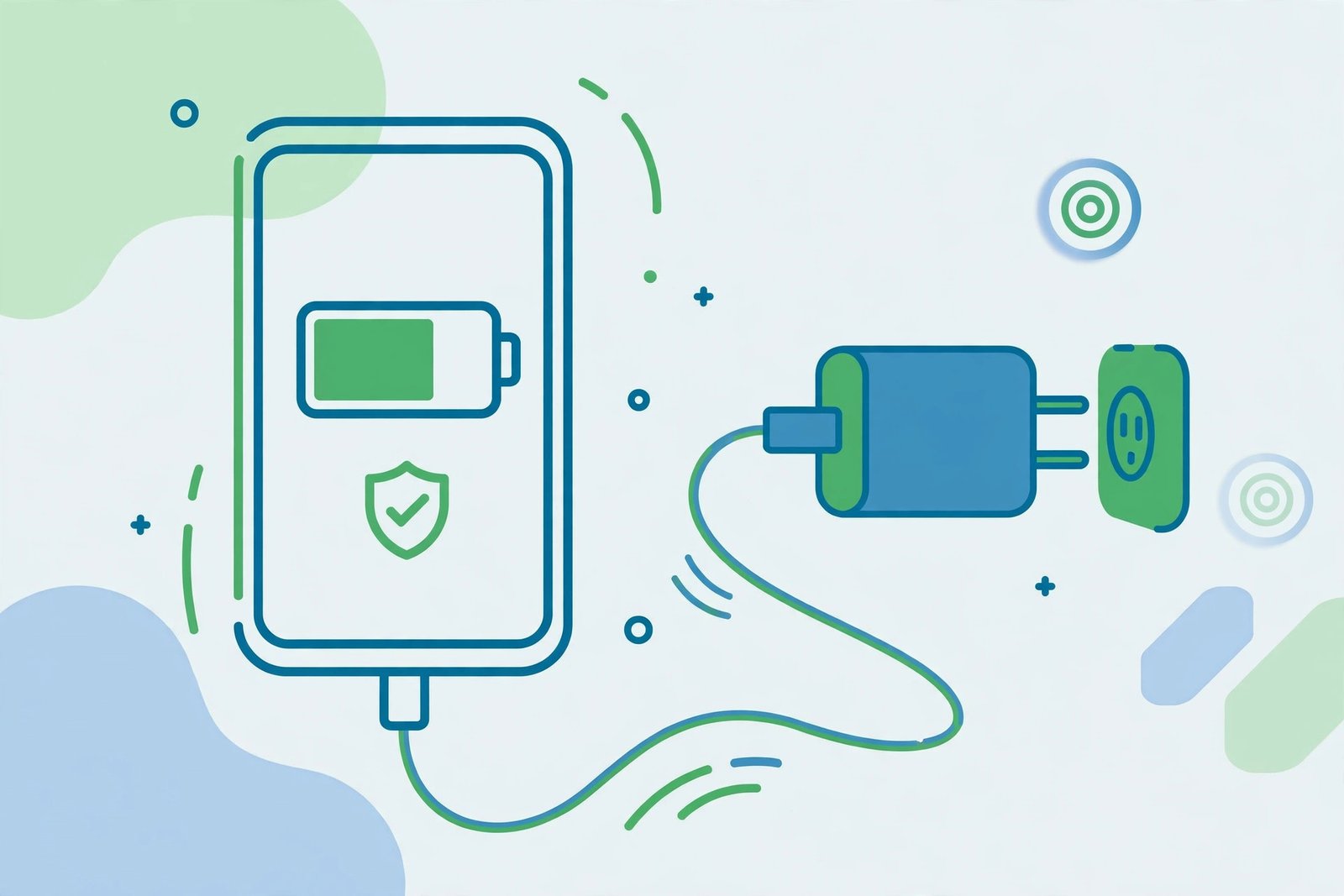
That 80% limit is not a drain fix by itself — your phone shows less charge by design — but less heat means slower degradation. Samsung offers similar protection, and Samsung’s official Galaxy battery care and maintenance guide explains how proper charging slows deterioration.
Check Battery Health on Pixel and Samsung
On Pixel, go to Settings > Battery > Battery health. Pixel 8a and newer Pixel 9-series phones show Battery capacity as a percentage of a new battery. Normal is within expected limits; Reduced, below 80%, means consider a replacement. No software fix reverses physical wear.
Fix 5: Use Battery Saver and Dark Mode to Tame the Display
The screen uses more power than any other component, so this is an essential part of the android 16 battery drain after update fix.
- Turn on Adaptive brightness from Settings > Display & touch > Adaptive brightness.
- Turn on Battery Saver from Settings > Battery > Battery Saver when you need extra hours, and set a schedule so it turns on automatically at a percentage you choose.
- Use Dark theme from Settings > Display & touch > Dark theme on AMOLED and OLED displays, where black pixels use almost no power. On LCD screens it saves very little, so brightness matters more there.
Lower Refresh Rate and Shorten Screen Timeout
On Pixel, turn off Settings > Display > touch > Smooth display to lock to 60Hz; on Samsung, use Settings > Display > Motion smoothness > Standard. Then shorten Screen timeout to 30 seconds or 1 minute.
Fix 6: Fix Location, Nearby Scanning and 5G Drain
Location Permissions
- Go to Settings > Location > App location permissions.
- Set most apps to Allow only while using the app, and set apps that never need your position to Don’t allow.
- Reserve Allow all the time for Maps, ride-hailing, weather and fitness apps you trust.
Wi-Fi Scanning, Bluetooth Scanning and Nearby Devices
Go to Settings > Location > Location services and turn off Wi-Fi scanning and Bluetooth scanning if you do not use location automation. Also turn off Nearby device scanning in Settings > Connected devices > Connection preferences when not pairing accessories.
5G and Preferred Network Type
If 5G is unreliable where you live, go to Settings > Network & internet > SIMs > [your SIM] > Preferred network type and choose 4G/LTE. Hunting for a weak 5G signal drains faster and runs warmer. On Samsung, use Settings > Connections > Mobile networks > Network mode. If your 5G signal is strong, leave this setting alone.
Fix 7: Wipe the Cache Partition in Recovery Mode
If drain is still there after 3–4 days, old system cache files from Android 15 are the likely cause. Wiping the cache partition removes temporary system files. It does not delete photos, apps, messages or accounts.
How to Wipe the Cache Partition Safely
- Back up first, then power the phone off completely.
- Connect a Samsung Galaxy to a PC with a USB-C cable — newer Galaxy phones require this to enter recovery.
- Press and hold Volume Up + Power until the Android Recovery menu appears, then release.
- Use the Volume keys to highlight Wipe cache partition and press Power to select it.
- Confirm Yes, wait for it to complete, then select Reboot system now.
On Pixel, reach recovery by holding Power + Volume Up, selecting Recovery mode, and at “No command,” holding Power and tapping Volume Up once. If Wipe cache partition is not offered on your model, skip this step. After rebooting, charge overnight and judge battery over the next full day.
Warning: Do not confuse Wipe cache partition with Wipe data/factory reset in the same menu. The second option erases everything on the phone.
When Android 16 Battery Drain Is Not Normal
Extra drain for two or three days is settling. Losing more than 10% overnight with the screen off, a phone that stays hot while idle, or severe drain after a full week is not normal. Repeat Fix 1, check for a pending patch in Settings > System > System update, and check Battery Health. Galaxy users can also follow Samsung’s official tips to extend Galaxy battery life.
Frequently Asked Questions
How Long Does Battery Drain Last After the Android 16 Update?
For most phones, 48 to 72 hours. Allow up to 5 to 7 days for re-indexing, ART optimization and Adaptive Battery re-learning to finish. Keep the phone plugged in overnight during that first week. If drain is still severe after a week, work through Fixes 1, 3 and 7.
Does a Factory Reset Help With Android 16 Battery Drain?
Only as a last resort. A reset removes leftover conflicts, but it erases everything, forces Adaptive Battery to learn from zero, and can make battery feel worse for a few days. Try it only if drain persists beyond a week, apps are crashing, and the phone is overheating. Back up from Settings > System > Backup first.
How Do I Check Battery Health on Android 16?
On Pixel, go to Settings > Battery > Battery health. Pixel 8a and newer models show Battery capacity and a status of Normal, Reduced or Unavailable. Above 80% is healthy; below 80%, consider a replacement. On Samsung, go to Settings > Battery > Battery protection, and use Samsung Members > Diagnostics > Battery status to check if your battery is Good or needs service.
Should I Use Battery Saver All the Time on Android 16?
Most people should not. Battery Saver limits background activity, sync and performance, which can delay notifications. Use it as a scheduled safety net at 20%, and rely on Adaptive Battery and display settings for everyday saving.
Conclusion
The most reliable android 16 battery drain after update fix is a sequence, not one magic setting: let the phone settle, find the rogue app in Battery usage, restrict it, update everything, and keep Adaptive Battery and charging optimization on. Then tame display, location and 5G, and wipe the cache partition only if the problem survives.
Diagnose first, restrict second, reset last. For most phones, battery life returns to normal within a week.
