


WhatsApp Notifications Not Working on Android 16? Fix by Phone Brand (Samsung, Pixel, Xiaomi)
If WhatsApp notifications are not working on Android 16 — messages arrive late, silently, or only when you open the app — the problem is almost never WhatsApp itself. Android 16 tightened background-app rules and reset several battery and notification settings during the update, and on Samsung, Pixel and Xiaomi phones those defaults quietly choke WhatsApp in the background.
The good news: this is fixable in about ten minutes, with no factory reset and no reinstall needed in most cases. Work through the nine fixes below in order. Fixes 1–3 solve it for the large majority of users.
Quick Checks First (2 Minutes)
Before changing settings, rule out the obvious:
- Restart your phone. A reboot clears stuck notification services after an update.
- Turn off Do Not Disturb from Quick Settings and check that no Focus or Bedtime mode is scheduled.
- Update WhatsApp from the Play Store — outdated builds misbehave on new Android versions.
- Check your connection. If notifications arrive on Wi-Fi but not mobile data (or vice versa), the issue is data restriction, not notifications — jump to Fix 4.
If everything above looks fine, continue with Fix 1.
Fix 1 – Turn On All WhatsApp Notification Channels
Android 16 manages notifications per channel, and the update can silently disable individual WhatsApp categories — so message alerts work but group or call notifications do not, or nothing makes a sound.
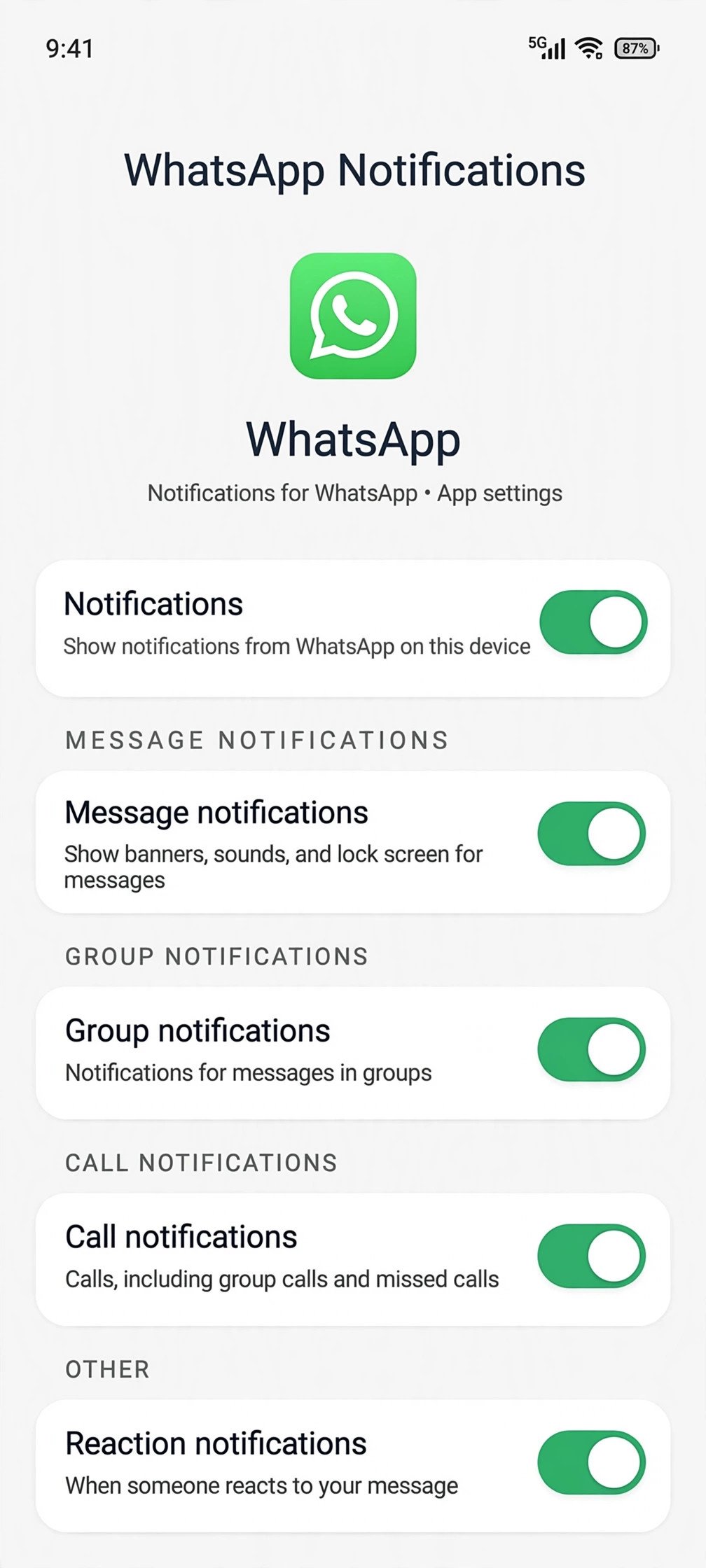
- Open Settings > Apps > WhatsApp > Notifications.
- Make sure the master Allow notifications toggle is on.
- Open each category — Message notifications, Group notifications, and Call notifications — and confirm all three are enabled.
- Inside each category, check that Sound is set (not Silent), Pop on screen is allowed, and Vibration is on.
- Go back to Settings > Notifications > Notification history and turn history on — this helps you confirm whether WhatsApp is posting notifications that you simply never see.
Most "no sound" and "no banner" complaints end here. If notifications are enabled but still arrive late or only when you open WhatsApp, the culprit is battery optimization — Fix 2.
Fix 2 – Stop Battery Optimization From Killing WhatsApp
This is the number-one cause of delayed WhatsApp notifications on Android 16. When the system restricts WhatsApp's background activity to save power, messages cannot wake the app, so alerts pile up until you open it manually.
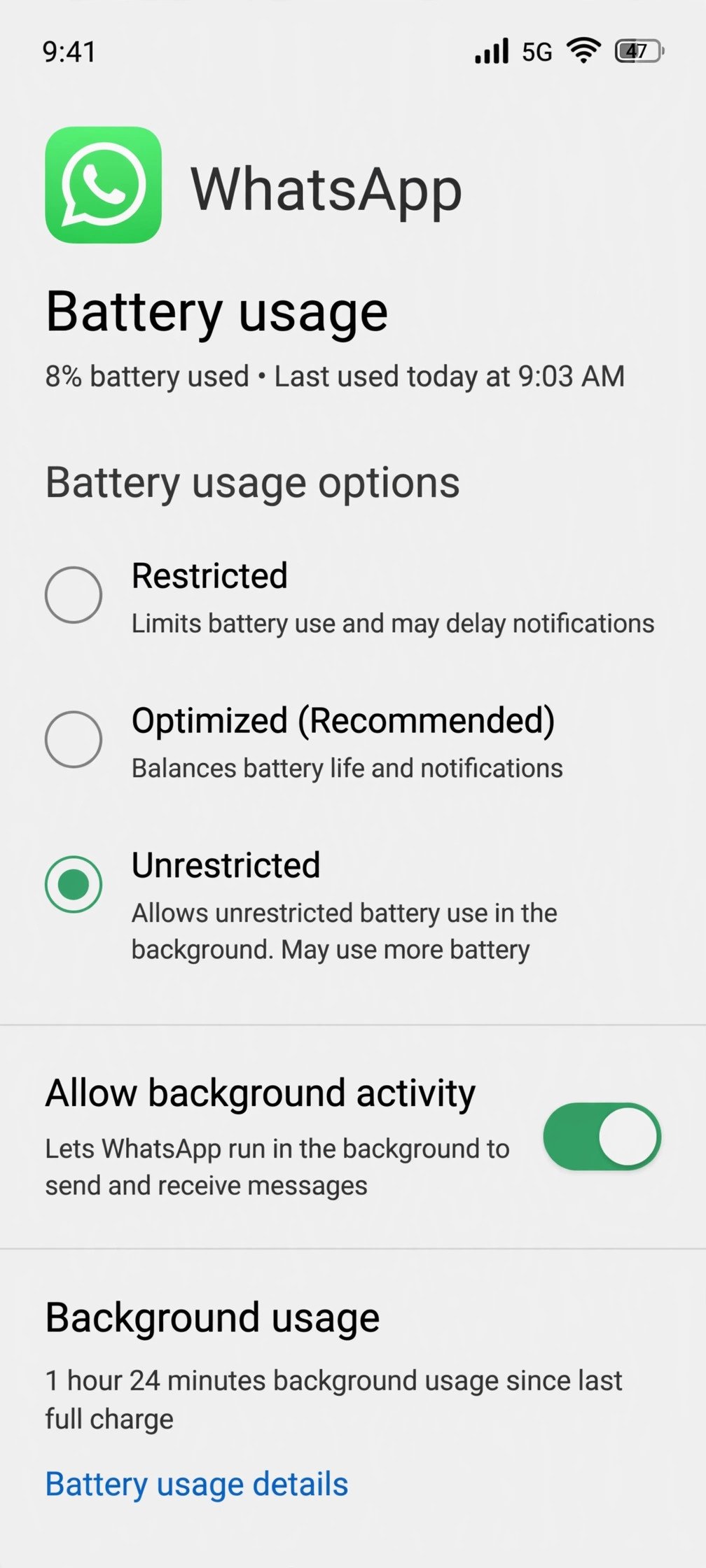
On stock Android 16, go to Settings > Apps > WhatsApp > Battery and set battery usage to Unrestricted (allow background activity). Then apply the brand-specific steps below, because Samsung, Pixel and Xiaomi each add their own extra layer of app killing.
If your phone is also losing charge quickly since updating, the same battery settings are involved from the other direction — our Android 16 battery drain after update fix guide walks through the full power-side tuning for Pixel and Samsung.
Samsung (One UI 8.5)
- Go to Settings > Battery > Background usage limits.
- Make sure Put unused apps to sleep is not sweeping WhatsApp up — open Sleeping apps and Deep sleeping apps and remove WhatsApp from both lists if present.
- Open Never sleeping apps, tap +, and add WhatsApp.
- In Settings > Apps > WhatsApp > Battery, confirm it shows Unrestricted.
Google Pixel
- Go to Settings > Apps > WhatsApp > Battery and select Unrestricted.
- Open Settings > Battery > Battery Saver and make sure it is off (or add WhatsApp as an exception if you use scheduled Battery Saver).
- Under Settings > Battery > Adaptive Battery, leave it on — it learns over a week — but confirm WhatsApp is not listed under restricted apps.
Xiaomi (HyperOS)
- Go to Settings > Apps > Manage apps > WhatsApp > Battery saver and choose No restrictions.
- On the same screen, enable Autostart so HyperOS does not block WhatsApp from launching in the background.
- Optional but effective: open Recent apps, find WhatsApp, and tap the lock icon so the system never swipes it away.
Fix 3 – Turn Off "Pause App Activity if Unused"
Android automatically hibernates apps you have not opened in a while — revoking permissions and stopping notifications. After the Android 16 update, WhatsApp can get flagged even if you use it daily.
- Go to Settings > Apps > WhatsApp.
- Find Pause app activity if unused and turn it off.
- While here, confirm Notifications permission and all runtime permissions are granted.
Fix 4 – Allow Unrestricted Data Usage
Data Saver and per-app background-data blocks stop WhatsApp from fetching messages on mobile data, which looks exactly like broken notifications.
- Go to Settings > Network & internet > Data Saver and turn it off, or leave it on and exempt WhatsApp.
- Go to Settings > Apps > WhatsApp > Mobile data & Wi-Fi and enable Unrestricted data usage and Background data.
- If you use a VPN, ad-blocker or private DNS, test with it disabled — aggressive filtering can delay push delivery.
Background data restrictions break more than messaging — Android throttles background data for streaming apps the same way. Our TV app download guide shows the same unrestricted-data settings applied to media apps on Android.
Fix 5 – Check Do Not Disturb, Bedtime and Focus Modes
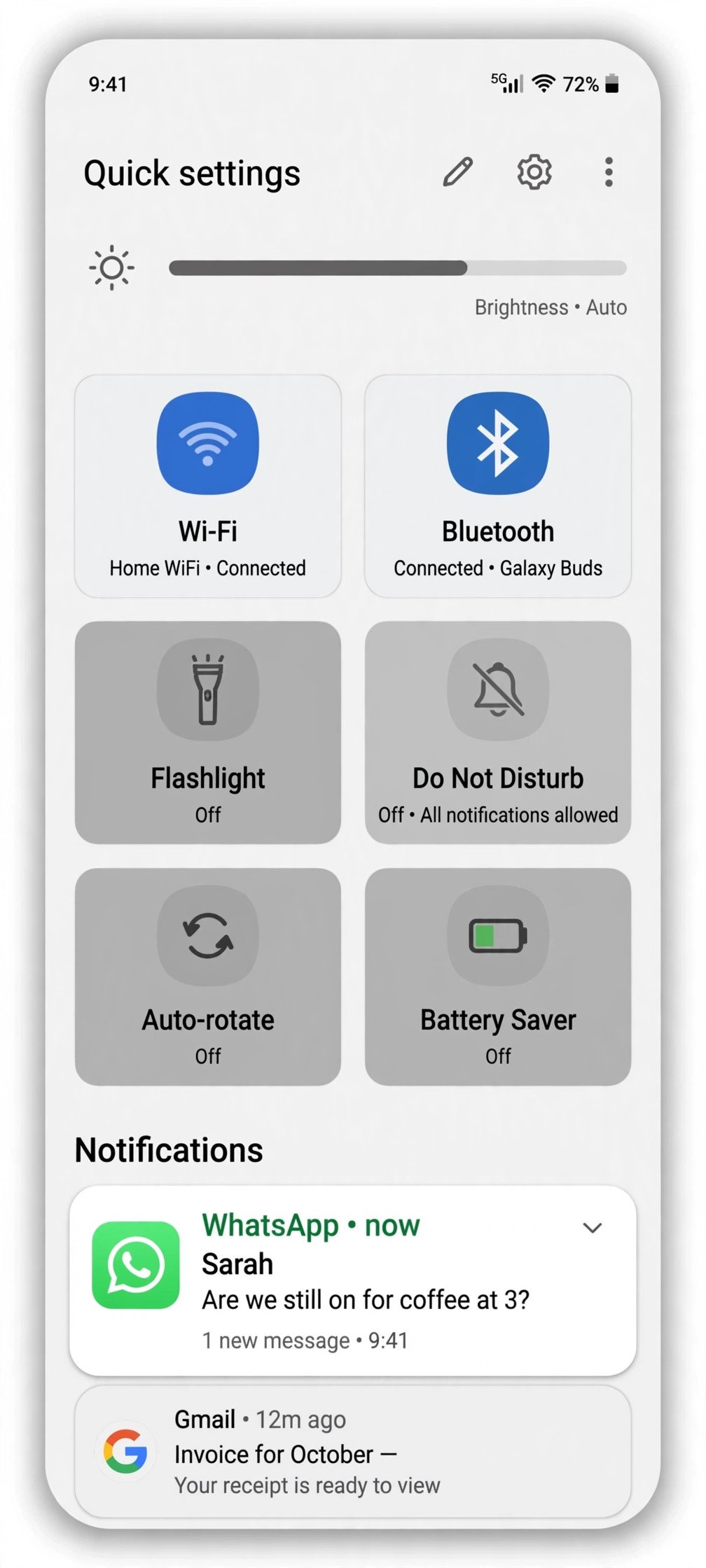
Scheduled quiet modes are a classic silent killer: notifications arrive but make no sound and never appear on the lock screen.
- Open Settings > Sound & vibration > Do Not Disturb (on Samsung: Settings > Notifications > Do not disturb).
- Check Schedules — delete or adjust any Bedtime, Sleep or Work schedule that overlaps your day.
- Under DND exceptions, allow Calls and messages from contacts if you want WhatsApp calls to break through.
- On Pixel, also check Settings > Digital Wellbeing > Bedtime mode and Focus mode schedules.
Fix 6 – Reset Muted Chats and Custom Notifications
Sometimes only some chats are silent — a muted group or a per-chat custom tone set to Silent.
- In WhatsApp, check Settings > Notifications and confirm message, group and call tones are set.
- Open any quiet chat, tap the contact or group name, and check Mute notifications is off.
- Under the same screen, tap Custom notifications and either configure them properly or uncheck Use custom notifications to fall back to defaults.
- Unarchive chats you still care about — archived chats never notify by default.
Fix 7 – Update WhatsApp and Clear Its Cache
A corrupted cache after the OS update can break notification listeners without any visible error.
- Update WhatsApp from the Play Store (or Galaxy Store on Samsung).
- Go to Settings > Apps > WhatsApp > Storage & cache and tap Clear cache — this does not delete chats.
- Restart the phone and ask someone to send you a test message.
Fix 8 – Check Linked Devices and WhatsApp Web
If you use WhatsApp on a computer or tablet, notification routing can get confused — alerts go to the linked device instead of your phone.
- In WhatsApp, tap the three dots > Linked devices and review the list.
- Remove devices you no longer use.
- On your computer's WhatsApp Web/Desktop, check its own notification settings are not set to mute everything.
Fix 9 – Reset App Preferences (Last Resort Before Reinstall)
If nothing above worked, reset all app preferences. This restores default permissions, notification channels and background restrictions for every app — without deleting any data.
- Go to Settings > System > Reset options > Reset app preferences.
- Confirm, restart the phone, then re-apply Fixes 1 and 2 for WhatsApp.
Only if this fails should you back up chats (WhatsApp > Settings > Chats > Chat backup) and reinstall — a reinstall fixes deep corruption but costs you time.
Still Not Working?
If notifications fail even after all nine fixes, check WhatsApp’s official troubleshooting pages for carrier-specific issues, and Google’s guide to controlling Android notifications for version-specific behavior. For a second opinion from independent tech blogs, TechFixZone’s 2026 Android notification fix guide and MobileRepairGuide’s 10-fix walkthrough cover the same ground with extra screenshots. All of them confirm what this guide covers: on Android 16, missed WhatsApp alerts are a settings problem, not a broken app.
FAQs
Why are my WhatsApp notifications delayed on Android 16?
Delayed notifications are almost always battery optimization. Android 16 (plus Samsung's, Xiaomi's or Pixel's extra power management) stops WhatsApp running in the background, so messages only arrive when you open the app. Set WhatsApp's battery usage to Unrestricted and add it to your brand's never-sleep list (Fix 2).
Why do WhatsApp notifications arrive only when I open the app?
That is the textbook symptom of background restriction or Pause app activity if unused being enabled. Apply Fix 2 and Fix 3, then restart the phone.
Why is there no WhatsApp notification sound on Android 16?
Check the per-channel sound settings in Settings > Apps > WhatsApp > Notifications — the update can set a channel to Silent. Also check Do Not Disturb schedules and per-chat custom notification tones (Fixes 1, 5 and 6).
Will reinstalling WhatsApp delete my chats?
Only if you skip the backup. Go to WhatsApp > Settings > Chats > Chat backup and back up to Google Drive first. Reinstalling is rarely needed — try Fix 9 first.
Why do notifications work on Wi-Fi but not mobile data?
Data Saver or per-app background-data restriction is blocking WhatsApp on mobile data. Enable Unrestricted data usage for WhatsApp (Fix 4).
Conclusion
WhatsApp notifications not working on Android 16 comes down to three things: notification channels the update silenced, battery optimization putting WhatsApp to sleep, and quiet modes you forgot were scheduled. Fix the channels, set WhatsApp to Unrestricted battery with your brand's never-sleep exception, and check DND — that combination restores alerts for nearly everyone. Pair this with proper power tuning and your phone will both notify on time and last the day.
